
Before you start #
Passyble for Android is coming to Google Play and isn't available there yet. See Passyble for Android for the status.
You need Android 9 or newer. Passkeys need Android 14.
Get your vault on the phone #
Open Passyble. On the welcome screen, pick how this phone gets your vault:
- Use on this phone: a new vault. Only if Passyble is new to you and this phone is your first device.
- Sign in to Passyble Server: the same server, user name and password as on your PC. Have an invite or pairing QR code? Scan it instead of typing.
- Restore from Google Drive: if your PC backs up to Google Drive (on phones with Google Play services). Sign in with the same Google account.
- Restore from WebDAV: if your PC syncs with your own cloud server, like Nextcloud. Use the same address, user name and password as on your PC.
- Open a vault file: a vault file in a Syncthing or cloud-drive folder on the phone.
Unlock with your fingerprint or face #
Enter your master password. When Passyble offers to unlock with your fingerprint or face, accept.
Finish the setup checklist #
The home screen shows Finish setting up Passyble. Each step has a Turn on button that takes you to the right place in Android's settings:
- Autofill: pick Passyble, so it can fill your logins.
- Passkeys (Android 14+): turn on Passyble under Passwords, passkeys & accounts.
- Code notifications: allow them. Passyble uses them only to show a 2FA code with a Copy button when it can't fill the code itself.
Chrome needs one more switch #
In Chrome: Settings → Autofill services → Autofill using another service. Then close and reopen Chrome.
Try it #
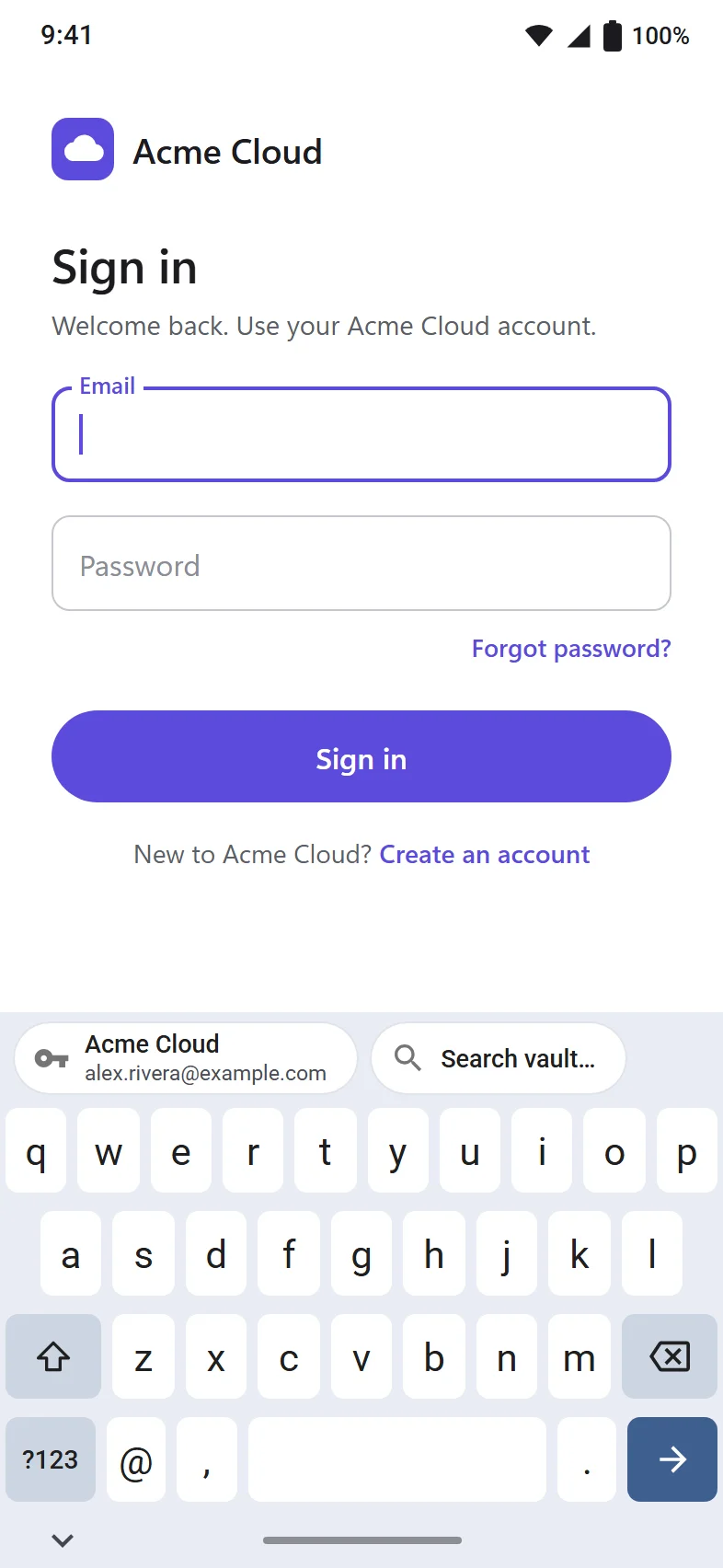
Open an app or website you have a login for and tap the username field. Passyble's suggestion appears above the keyboard or below the field. Tap it, then unlock with your fingerprint.
Optional: add Passyble's One-time code tile to Quick Settings (swipe down twice, edit the tiles) to bring back the last 2FA code quickly.
Nothing is filled? #
Check the setup checklist: Autofill must be on. In Chrome, also turn on Autofill using another service and restart Chrome. Some apps block autofill; use the keyboard suggestion or copy from Passyble.