
Download
The Passyble browser extension
Fills passwords, 2FA codes, passkeys, cards and addresses on websites. It works together with the Passyble app on your PC.
Status
Coming soon
The extension will be in the browser stores later. Until then, it comes with the Windows app, and the app walks you through adding it.
What you need
- Browsers
- An up-to-date Chrome, Edge, Brave or Firefox
- Your PC
- Windows, with the Passyble app installed and running (an icon by the clock is enough)
- Stores
- Not in the browser stores yet
What you get
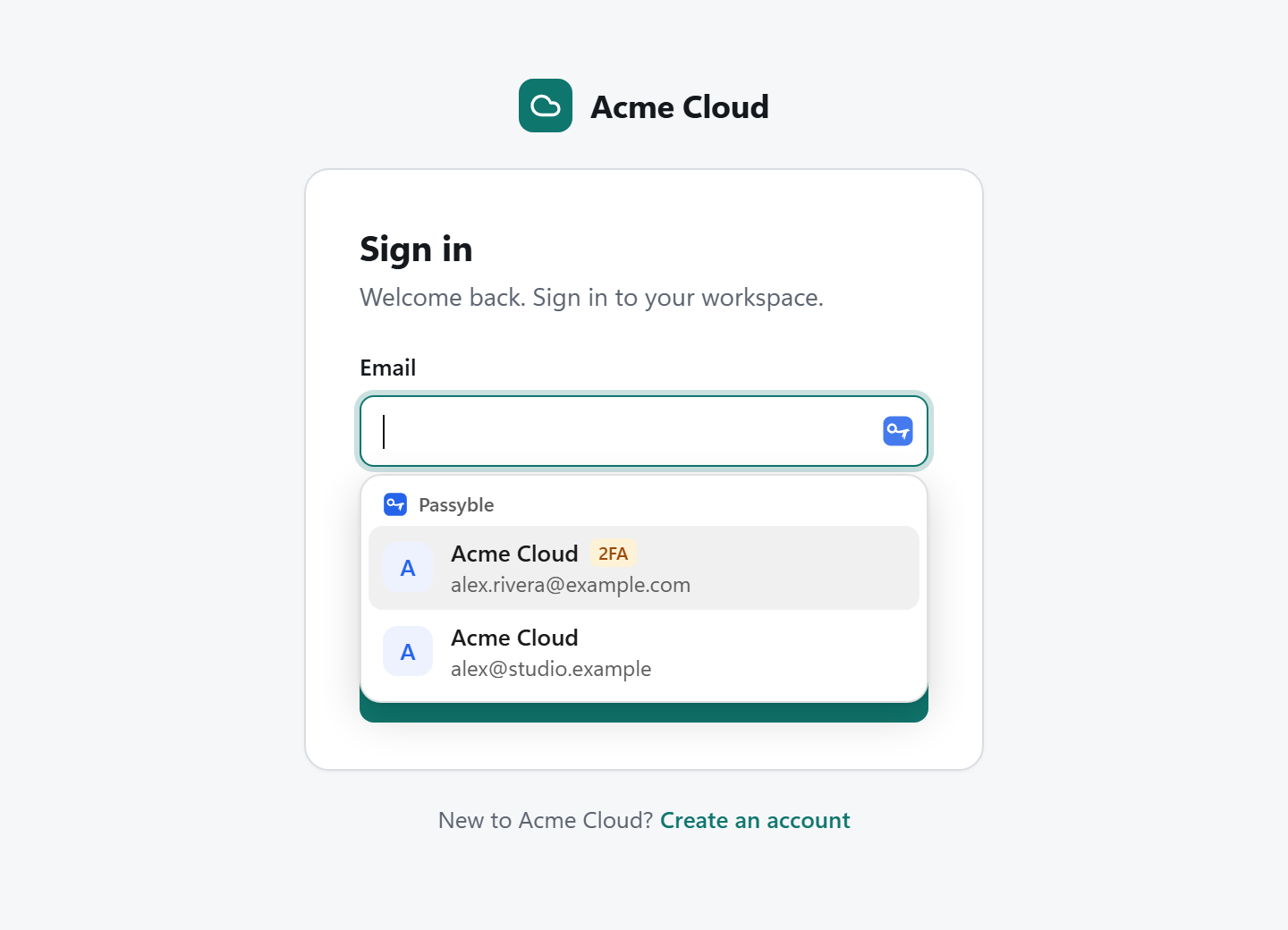
- A menu under the sign-in field with your logins for the site
- The 2FA code filled on the next step after the password
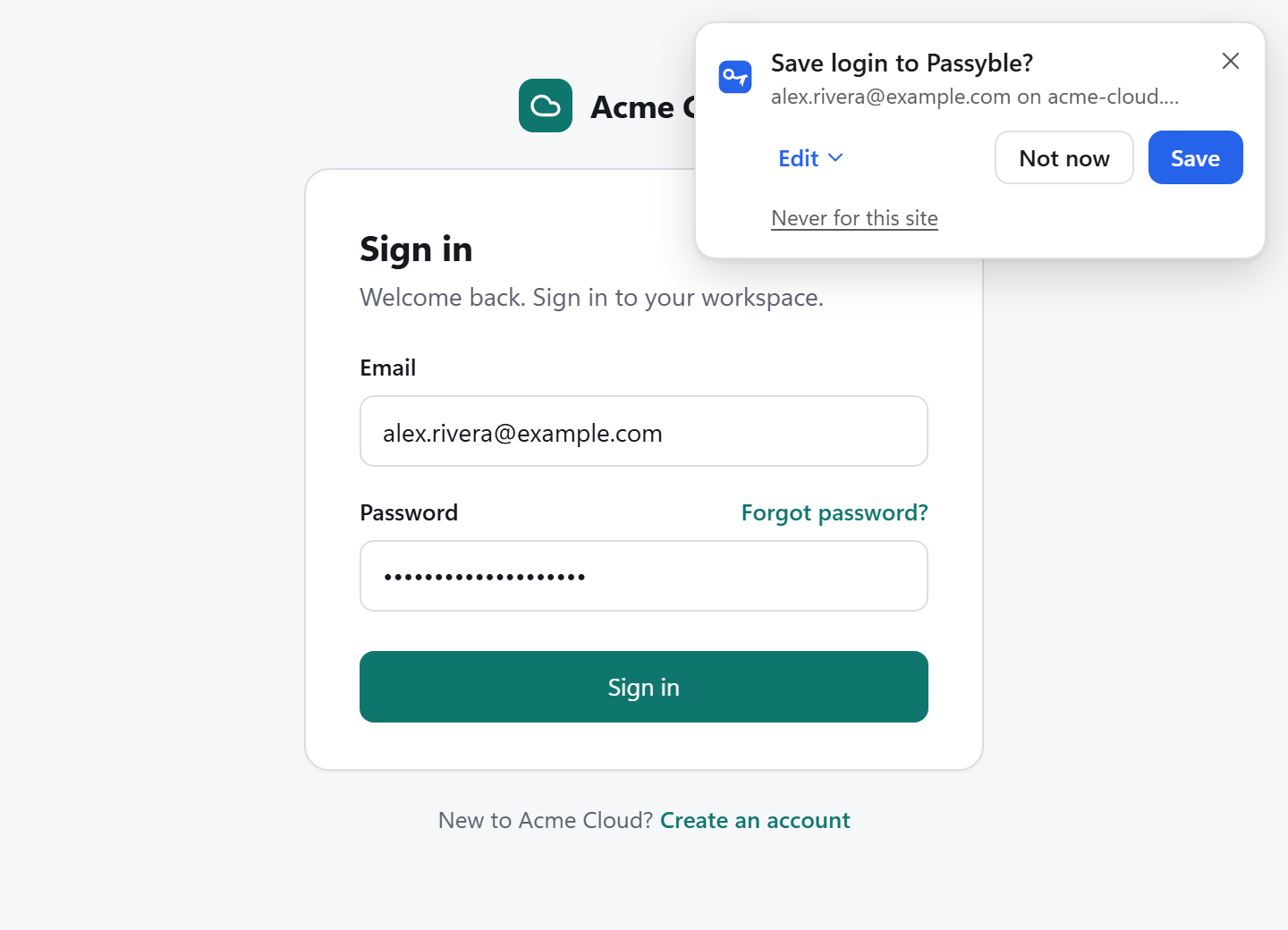
- Offers to save new logins, and a strong password when you sign up
- Passkeys saved to and used from your vault
- Cards and addresses in checkout and address forms
- A button in the toolbar to search and copy
- Your passwords stay in the Windows app: the extension asks for one login at a time
Set it up, step by step.
Once it's available, this is all it takes.
Install Passyble for Windows
The extension needs the app. A copy of the extension comes with it.
Open the setup guide
In Passyble: Settings, Autofill, Browser extension, Set up. Pick your browser.
Chrome, Edge or Brave
Open the extensions page, turn on Developer mode, click Load unpacked and pick the folder Passyble shows. Pin Passyble to the toolbar.
Firefox
Until the add-on is in Firefox's store, Passyble shows you how to load it. Firefox removes it when it closes, so you load it again next time.
Check the connection
Click the Passyble icon in the toolbar. The setup guide turns green when it's connected.
Guides.
Short, step-by-step help for the next things you'll want to do.