
Download
Passyble for Windows
The Windows app keeps your vault and fills your logins into your browser and your Windows apps.

Status
Coming soon
The Windows app comes first. We'll link the download here as soon as it's ready.
What you need
- Windows
- Windows 10 or 11
- Admin rights
- Not needed: Passyble installs just for you
- Windows Hello
- Optional, to unlock with your face, fingerprint or PIN
- Passkeys in other apps
- Optional, needs an up-to-date Windows 11
What you get
- Your vault, with search, tags, notes, cards and addresses
- Unlock with Windows Hello
- An icon by the clock, so the browser and the shortcut are always ready
- Fill logins into Windows apps with Ctrl+Alt+P
- 2FA codes in a small window with a Copy button
- Bring your passwords over from browsers and other password managers
- Warnings for weak, reused and leaked passwords
- Sync with your Google Drive, a cloud folder, your own cloud server or Passyble Server
- The browser extension comes with it
- Updates itself: checks once a day, and never installs without asking
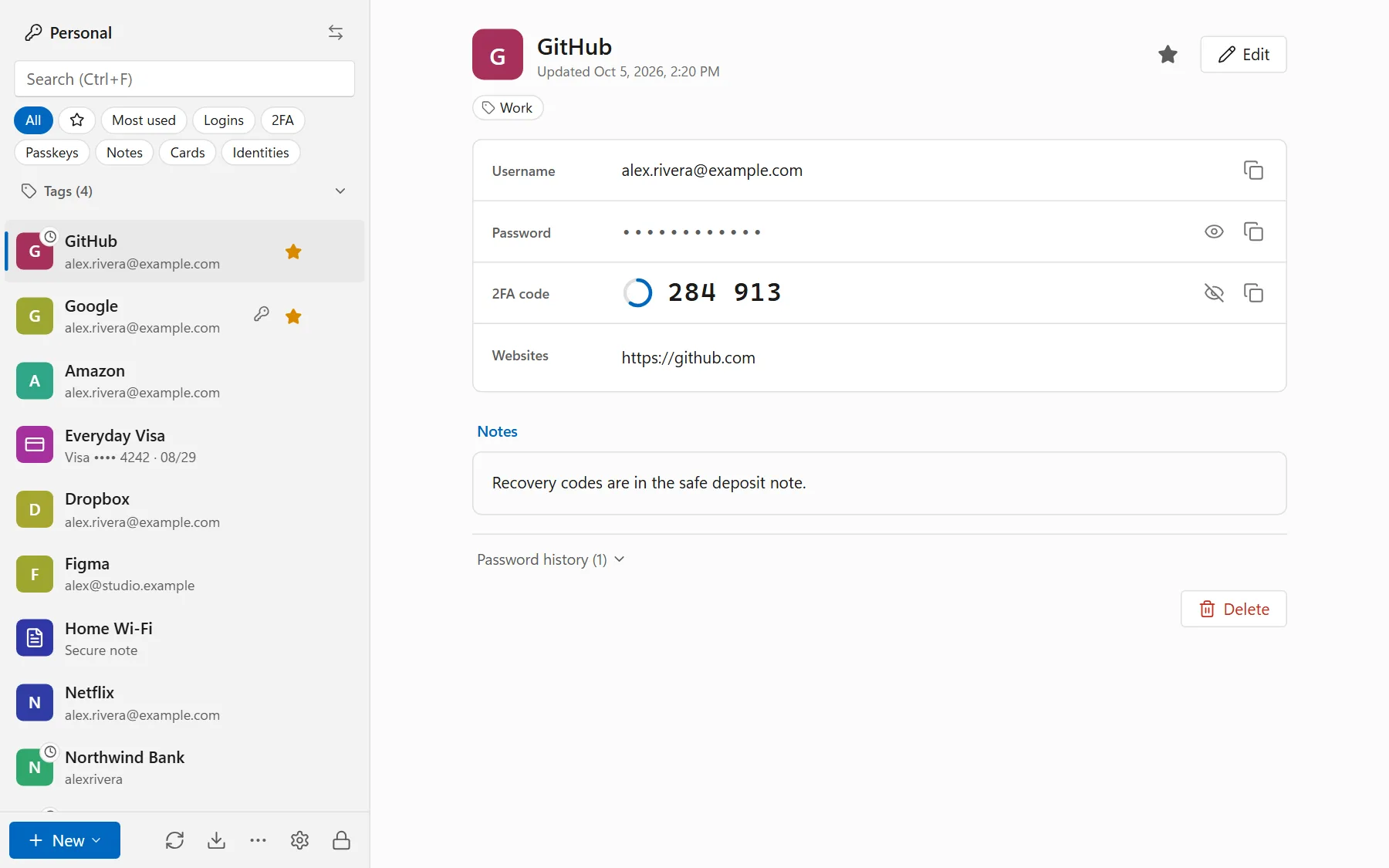
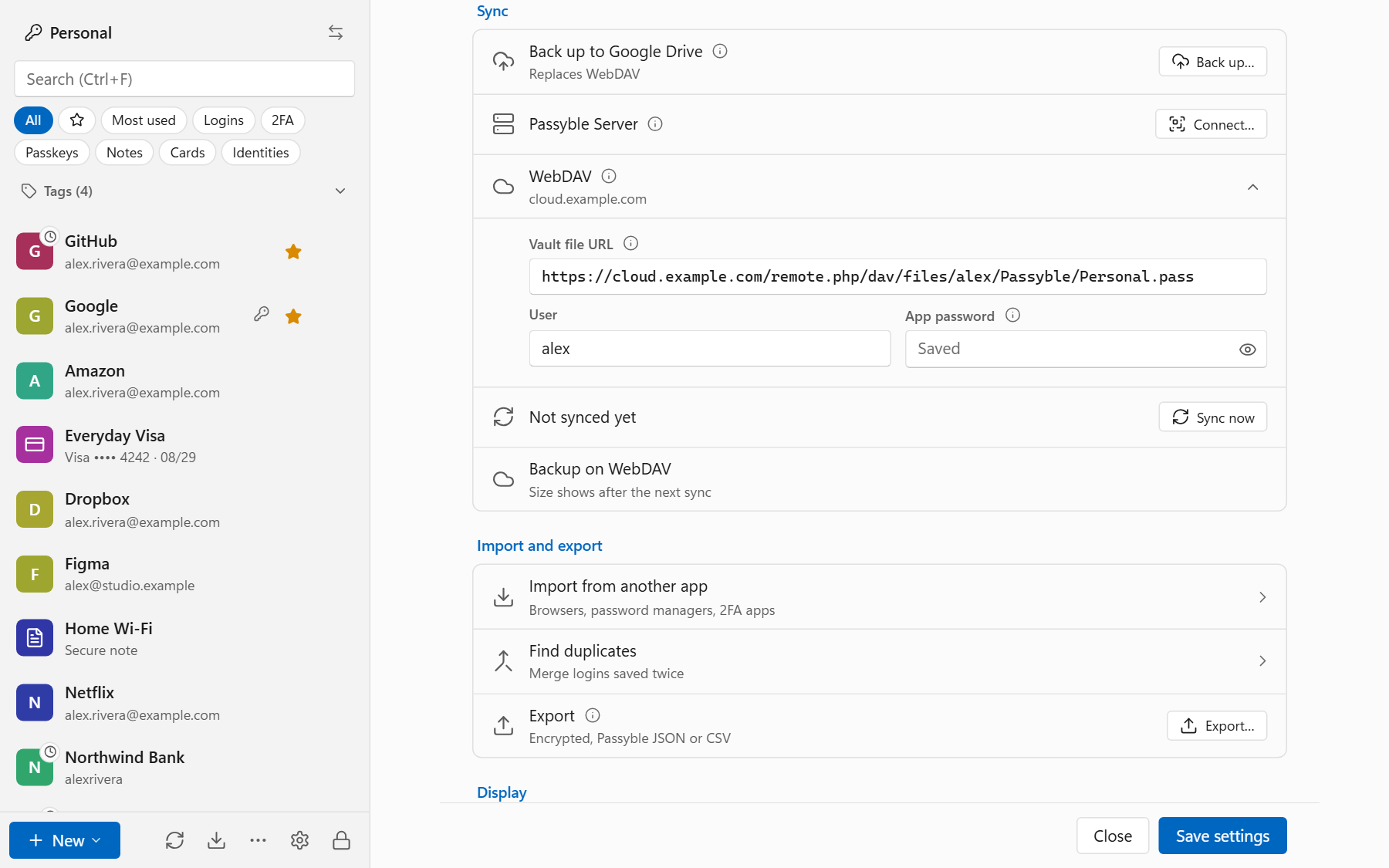
Set it up, step by step.
Once it's available, this is all it takes.
Install
Run the installer. It needs no admin rights.
Create your vault
On the welcome screen, choose Use on this PC. Already use Passyble on another device? Choose Sign in to Passyble Server, Restore from Google Drive or Open an existing vault file instead.
Choose a master password
A few random words beat a short complicated word. Nobody can reset it for you.
Save a recovery code
Passyble offers one right away. Print it or save it away from the PC.
Follow the Get started checklist
Turn on Windows Hello, connect your browser, bring your passwords over and set up sync.
Guides.
Short, step-by-step help for the next things you'll want to do.