
Download
Passyble for Android
Fills your logins in apps and websites, with suggestions right on your keyboard.
Status
Coming to Google Play
The Android app is on its way to Google Play. We'll link it here when it's live.
What you need
- Android
- Android 9 or later
- Passkeys
- Android 14 or later
- Unlock
- Fingerprint or face, optional
- Your vault
- From your PC through Google Drive, your own cloud server, Passyble Server or a vault file, or start a new one
What you get
- Fills logins in apps and browsers, with suggestions on your keyboard
- 2FA codes in a notification with a Copy button, and a Quick Settings tile
- Passkeys on Android 14 and later
- Scan 2FA QR codes with the camera
- A strong password offered when you sign up somewhere
- Warnings for weak, reused and leaked passwords
- No copy of your vault in Google's phone backup
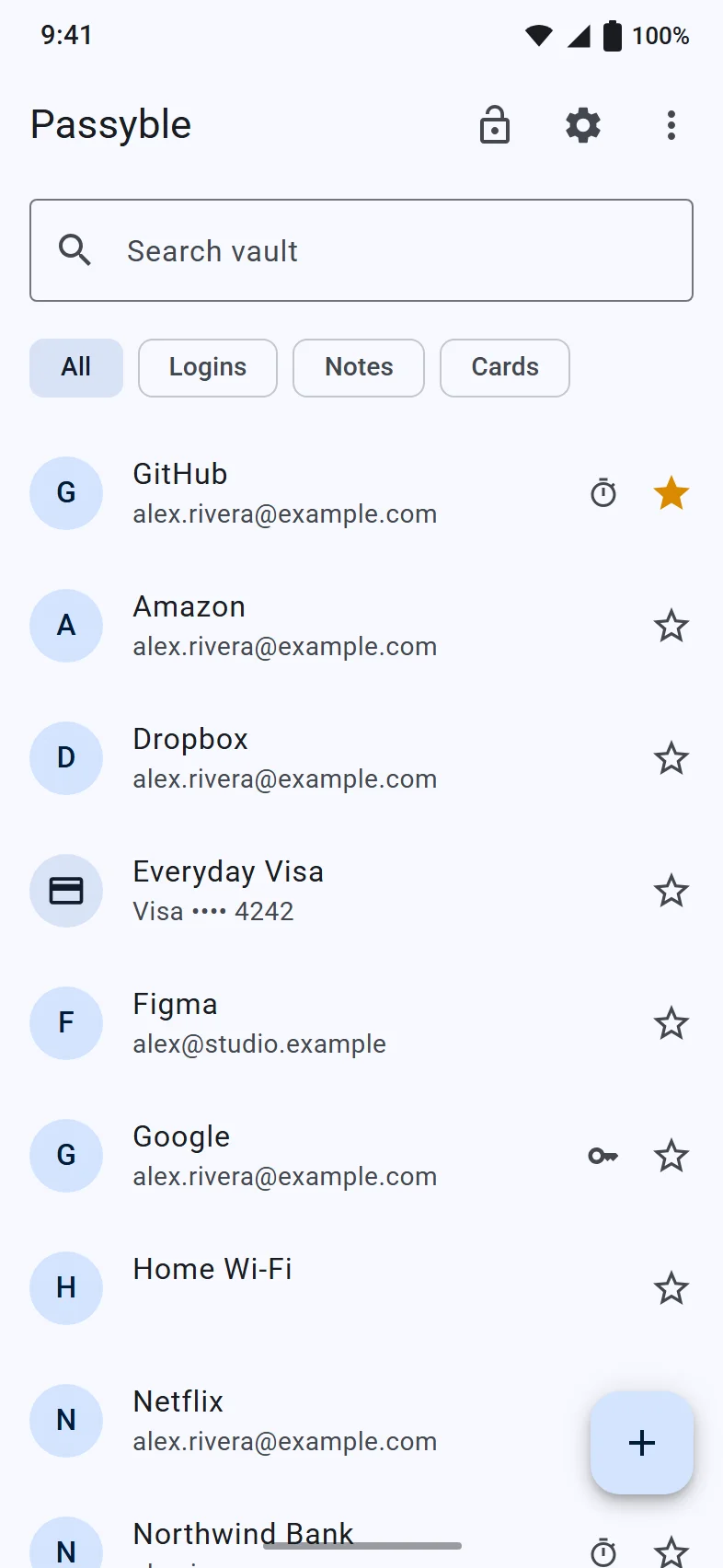
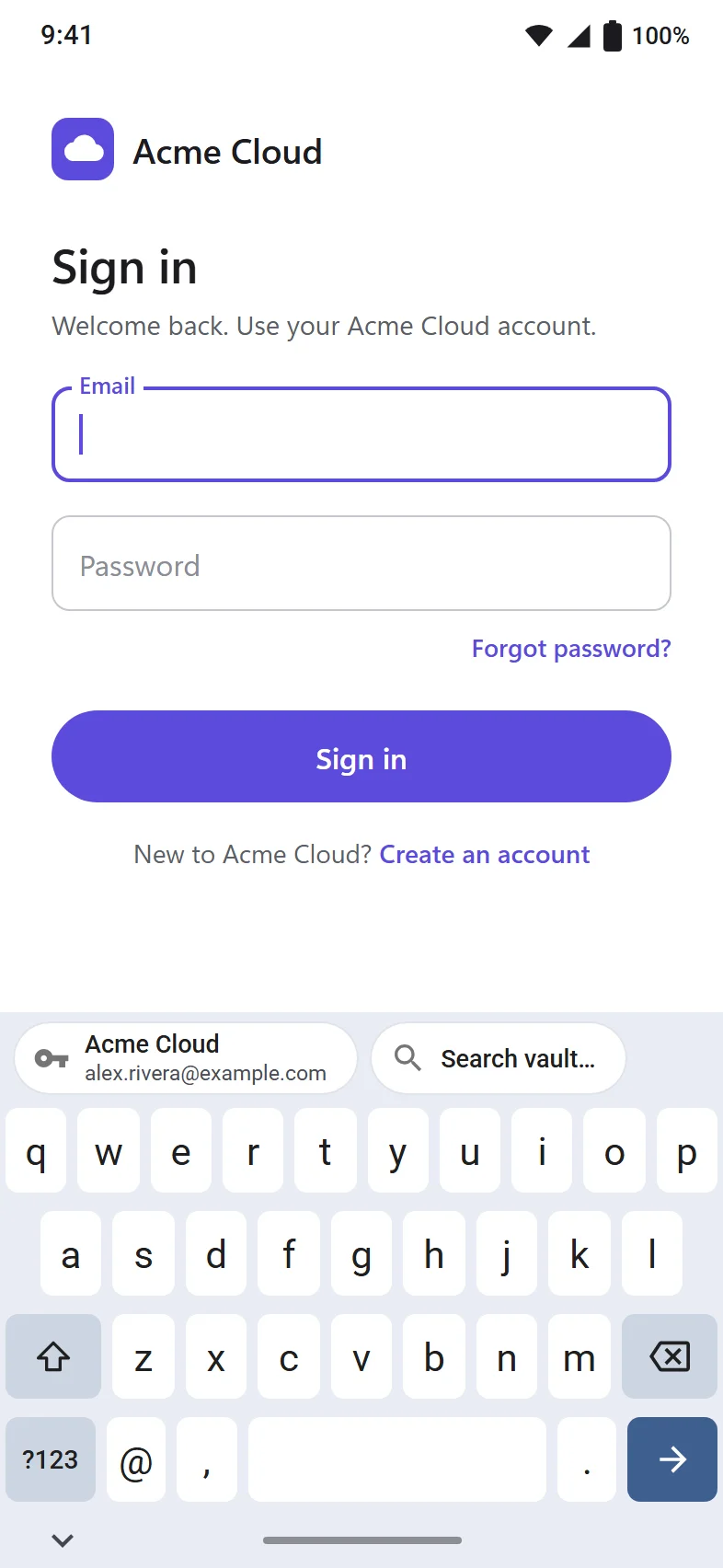
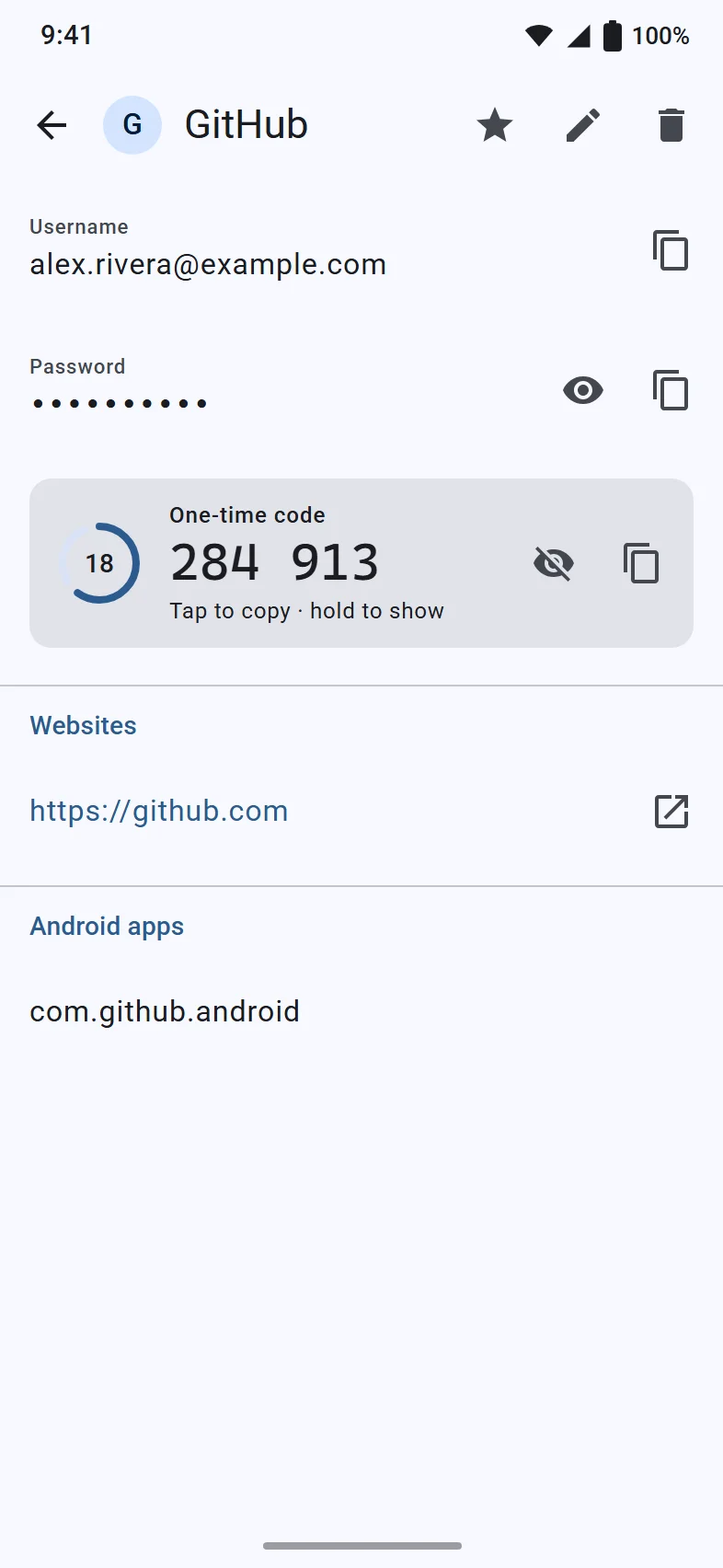
Set it up, step by step.
Once it's available, this is all it takes.
Install
From Google Play, once it's there.
Get your vault
Choose Use on this phone for a new vault, or Sign in to Passyble Server, Restore from Google Drive, Restore from WebDAV (your own cloud server) or Open a vault file.
Unlock
Enter your master password and say yes to unlocking with your fingerprint or face.
Follow the setup checklist
Turn on Autofill, Passkeys (Android 14 and later) and Code notifications. Each step takes you to the right place in your phone's settings.
Using Chrome?
In Chrome: Settings, Autofill services, Autofill using another service. Then restart Chrome.
Guides.
Short, step-by-step help for the next things you'll want to do.