
Before you start #
The extension isn't in the Chrome, Edge or Firefox stores yet. A copy comes with Passyble for Windows, and the app's setup guide walks you through adding it.
The extension talks only to the Passyble app on the same PC, so install Passyble for Windows first (Get started on Windows). It works with an up-to-date Chrome, Edge, Brave or Firefox. Passyble connects the browser for you each time it starts; you only add the extension once.
Open the setup guide #
- In Passyble, open Settings → Autofill → Browser extension → Set up…. It's also the first step of the Get started checklist, and in Settings → Help and tutorials.
- Pick your browser. Passyble preselects your default one.
Chrome, Edge or Brave #
- Click Open Chrome (or Edge, Brave). Passyble opens the browser and copies the extensions page address (
chrome://extensions,edge://extensionsorbrave://extensions). Paste it into the address bar and press Enter. - Turn on Developer mode: a switch at the top right in Chrome and Brave, in the left pane in Edge.
- Click Load unpacked. Click Copy folder path in Passyble's guide, paste it into the folder window's address bar, press Enter and click Select Folder.
- Click the puzzle-piece icon next to the address bar and pin Passyble, so its icon stays in sight.
Firefox #
Until the add-on is on addons.mozilla.org, Firefox loads it only as a temporary add-on and removes it when Firefox closes.
- Passyble opens
about:debugging. Click Load Temporary Add-on… and pick the file Passyble shows (Copy file path). - If Firefox asks, allow Access your data for all websites (
about:addons→ Passyble → Permissions). - Load it again after each Firefox restart.
Check that it's connected #
Click the Passyble icon in the toolbar. Passyble's guide turns the last step green as soon as the extension connects, and the extension opens a Welcome page with the same checks and short how-tos.
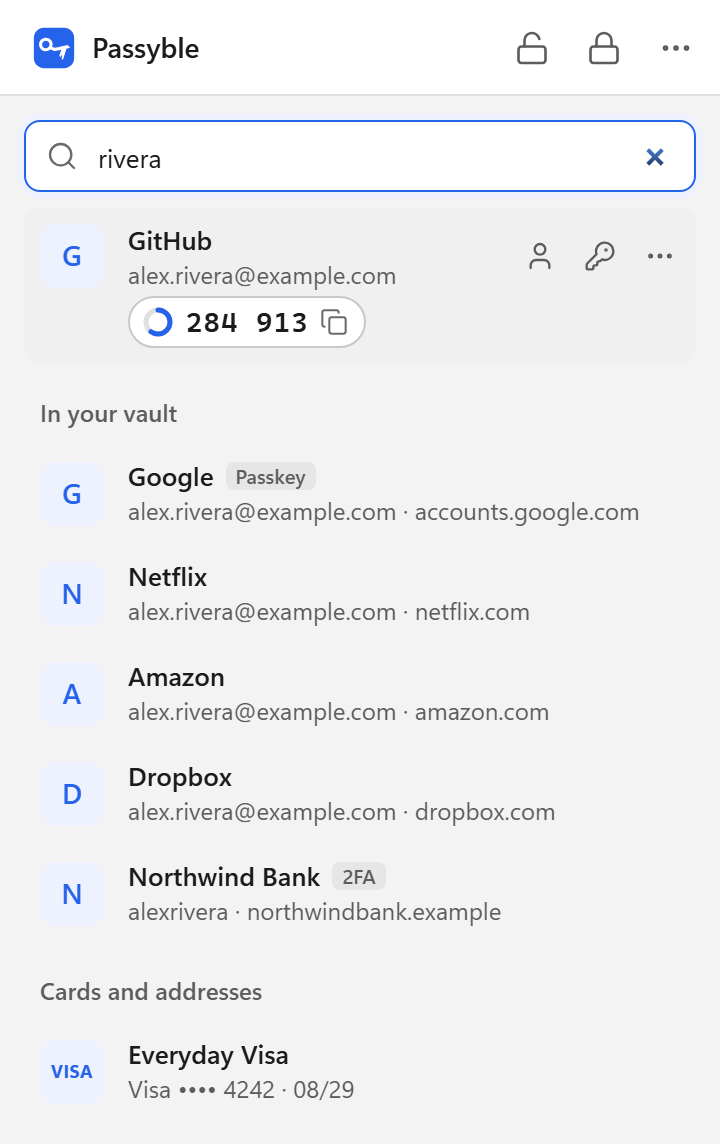
Try it: open the sign-in page of a site you have a login for and click the username field. Passyble's menu shows the matching logins.
If it doesn't connect #
- "Passyble can't be reached": open Passyble once (it registers itself with the browsers at every start), then click Try again.
- "Passyble isn't running": click Start Passyble in the extension, and turn on Settings → Startup → Start with Windows.
- Loaded but never connects (Chrome, Edge, Brave): it was probably loaded from another folder, so it got a different ID. Remove it and load it again from the folder Passyble's guide shows.