
The generator on Windows #
- While adding or editing a login, click Generate a password next to the password field. The tray menu has Generate password too.
- Pick Characters (Length 8 to 64, with a-z, A-Z, 0-9 and !@#) or Passphrase (3 to 10 words).
- Keep Avoid look-alikes on to leave out characters like I, l, 1, O and 0.
- Click Again for another one, then Use this password.
You can try the same generator on the home page.
In the browser and on Android #
- Browser: on a sign-up or change-password form, Passyble suggests a generated password in the field and saves it.
- Android: on a sign-up form, the autofill suggestion Generate strong password fills the password and its confirmation. In the item editor, the generator has Regenerate and Use.
Check your password health #
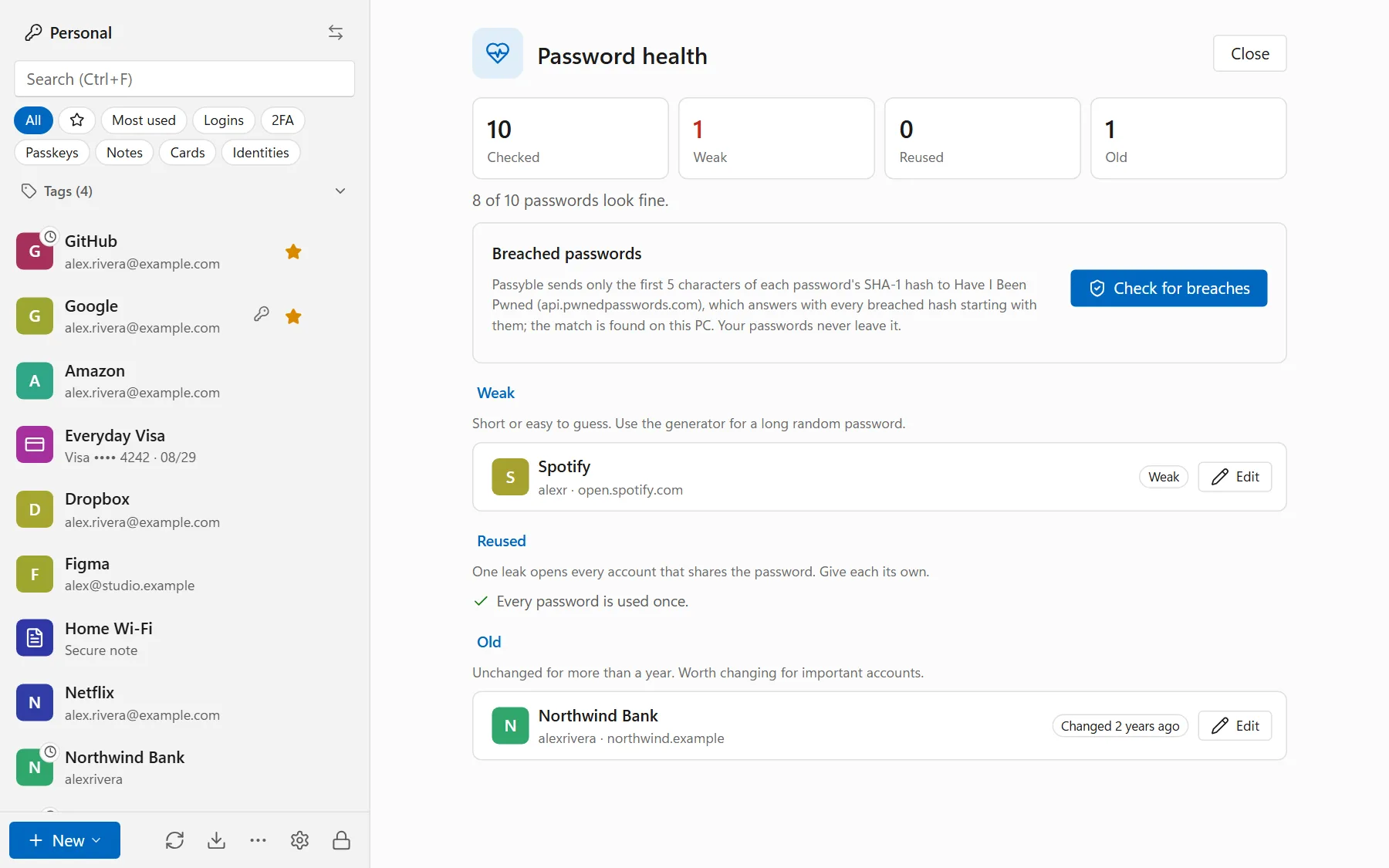
On Windows, click ⋯ at the bottom of the item list → Password health (or Settings → This vault → Password health). Passyble for Android has the same Password health screen. Everything is checked on your device:
- Weak: short or easy to guess. Use the generator for a long random password.
- Reused: one leak opens every account that shares the password. Give each its own.
- Old: unchanged for more than a year. Worth changing for important accounts.
Check for breaches #
Click Check for breaches. Passyble turns each password into a scrambled code on your device and sends only a tiny piece of that code to Have I Been Pwned, a well-known service that collects leaked passwords. It then checks the answer on your device. Your passwords never leave it, and nothing is checked unless you click.
Change anything under Found in data breaches first: attackers try breached passwords on every site.